

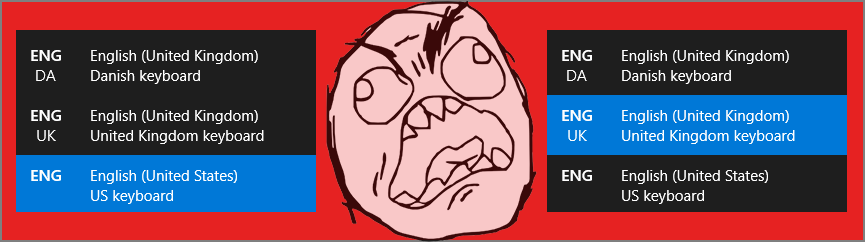
Let me ask you a couple of questions:
- Have you ever found yourself in a situation, where your keyboard layout is all of a sudden in a different language, than the one you thought you had specified?
- Have you then tried to disable all other keyboard layouts, just to find out that Windows somehow still wants to persistently change back to another layout?
Here’s a simple guide to get rid of the very annoying CTRL + SHIFT and ALT + SHIFT combinations to switch between keyboard layouts on Windows 10.
For me, the problem often occurs if I I’ve shuffled too far forward in my browser tabs, having pressed CTRL + TAB. To quickly go back, I press CTRL + SHIFT + TAB, but occasionally, I end up releasing TAB too quickly, and just shuffle CTRL + SHIFT, which then changes my keyboard layout.
To make sure that you would have a higher risk of messing this up, Microsoft also made ALT + SHIFT a possible combination 🙂 #notsaltyatall. So when you shuffle between open programs with ALT + TAB, and you want to go back one window, pressing ALT + SHIFT + TAB, you will occasionally shuffle ALT + SHIFT instead of ALT + SHIFT + TAB, making you switch input language.
Brothers and sisters…. We got you!
Few easy steps to salvation
- Press the Windows Button.
- Type in “Advanced Keyboard Settings”.
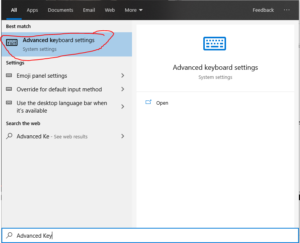
- Click the Advanced keyboard Settings tab.
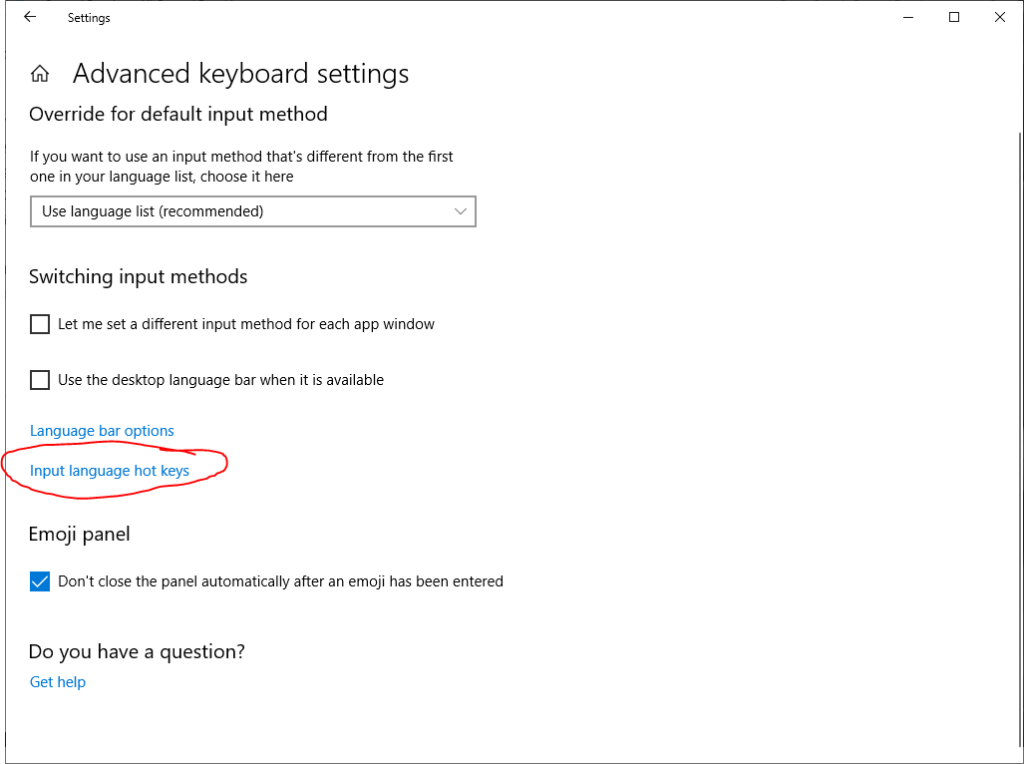
- In the new window that opens, click Input language hot keys as shown below.
- Click on Change Key Sequence…
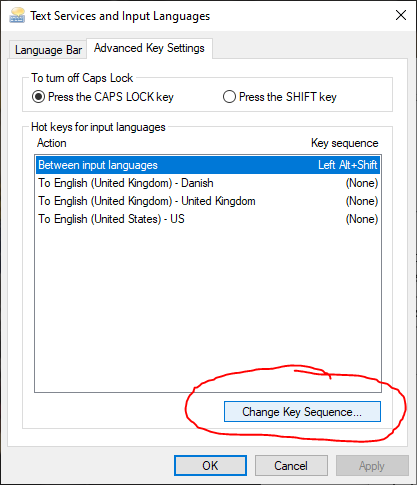
- This is the holy grail. From here, select Not Assigned in both Switch Input Language and Switch Keyboard Layout. Confirm, clicking OK
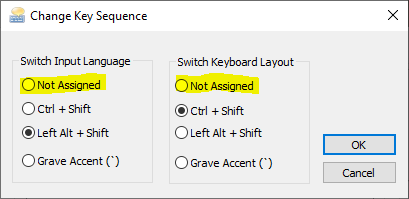
Now only Windows button + Spacebar will shuffle between the languages.
Now… Go have a good one!
Peace out,

